October is Cybersecurity Awareness Month, and this year’s theme is “Don’t Make It Easy for Them.” Of the four habits the National Cybersecurity Alliance and CISA are promoting, two are about signing in: use strong passwords and a password manager, and turn on multifactor authentication. That makes it a good month to answer a question owners ask me a lot: passkey vs password, what actually changes if our office switches?
The question got more practical this year. In March 2026, Microsoft made synced passkeys generally available for Microsoft 365 work accounts, so the option is sitting in your admin settings whether or not anyone has looked at it.
Below, I’ll cover what passkeys replace and what they don’t, device-bound versus synced passkeys, lost phones, shared logins, password managers, and the rollout order I’d use in a 25-person office. For the attacker’s side, I covered how criminals now go around passkeys instead of through them in my post on passkey phishing.
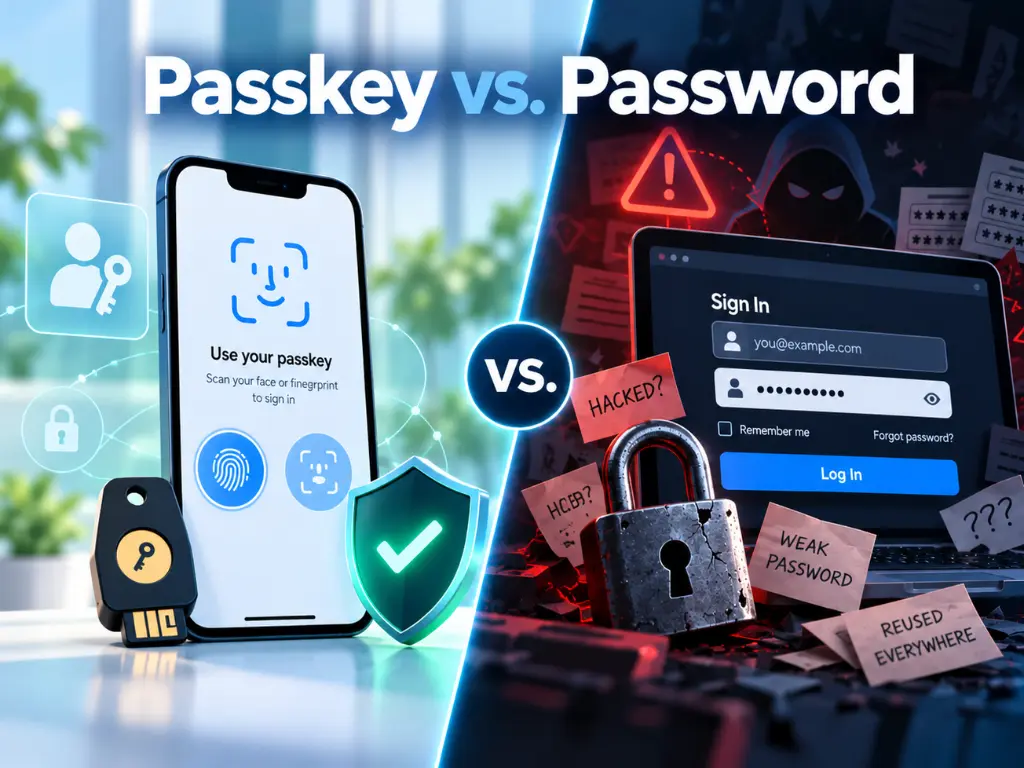
Passkey vs password: what’s actually different
So how do passkeys work? When you create one, your phone, computer, or security key makes a matched pair of cryptographic keys for that one account on that one website. The private key stays with you. As the FIDO Alliance, the industry group behind the standard, puts it: “The online service only has the public key.”
When you sign in, the site sends a random challenge, your device signs it, and the site checks the signature. The face scan, fingerprint, or PIN you use never goes to the website. In the FIDO Alliance’s words, “The device unlock (using biometric or PIN), or interaction with a security key, stays local.”
A passkey is also only offered to the site it was registered with, so there’s nothing to type into a fake page. That’s what stops the fake login page relay I wrote about in June.
| Password | Passkey | |
|---|---|---|
| What you do | Type a secret, then usually enter a code or approve a prompt | Unlock your phone or computer with your face, fingerprint, or PIN |
| What the website keeps | A password hash that can be stolen and cracked | Only a public key |
| Works on a fake site? | Yes, if someone types it there | No, it’s only offered to the real site |
| Can be reused? | Yes | No, each one belongs to one account on one site |
| If the device is lost | Nothing changes | Depends on the type of passkey |
What passkeys replace, and what they don’t
For sites that support them, passkeys replace two things: typing the password and the separate code or approval that follows.
That answers the passkeys vs 2FA question. A passkey isn’t an alternative to two-factor authentication. It’s two factors in one: the device you have, plus the face, fingerprint, or PIN that unlocks it. Google’s Workspace documentation describes a passkey that “covers first and second-factor authentication.” And in its default settings, Microsoft now offers each person’s strongest sign-in method first, so someone with a passkey might sign in without a password at all.
What passkeys don’t replace:
- The password, at least not yet. Adding a passkey doesn’t delete it. Google says turning on passwordless sign-in “doesn’t deactivate or remove the user’s existing password.” In Microsoft 365, the old password-and-code path stays open until you require something stronger with a Conditional Access authentication strength.
- Your password manager. Your bank, payroll provider, and line-of-business software may not offer passkeys for a while, and every account without one still needs a unique password. The business case for a password manager still holds.
- Your recovery process. Someone still has to help the person who loses a phone.
- Monitoring. A passkey protects the moment of sign-in. Watching what happens inside an account afterward is the job of identity threat detection and response.
Device-bound or synced: the decision that matters most
The FIDO Alliance sorts passkeys into two kinds. Synced passkeys are copied between a person’s devices through a cloud service. Device-bound passkeys “never leave a single device.”
For Microsoft 365 work accounts, the Microsoft passkey options look like this, according to Microsoft’s documentation:
- Synced: Apple Passwords (also called iCloud Keychain), Google Password Manager, or another provider such as 1Password or Bitwarden.
- Device-bound: Microsoft Authenticator on a phone, or a FIDO2 security key.
| Synced passkey | Device-bound passkey | |
|---|---|---|
| Where it lives | A cloud account: Apple, Google, or a password manager | One phone or one security key |
| If the device is lost | Restore it on a new device | Gone; register a new one |
| Who controls the copies | Whoever controls that cloud account | Whoever holds the device |
| Microsoft recommends it for | Everyone without admin rights | Admins and highly privileged users |
That last row comes straight from Microsoft’s passkey FAQ: “Microsoft recommends device-bound passkeys for admins and highly privileged users, and synced passkeys for all users with non-admin permissions in your organization.” NIST’s 2025 digital identity guidelines agree in substance. They allow syncable authenticators at the middle assurance level if access to the synced keys is protected by multifactor sign-in, but not at the highest level, because syncing means the key can leave the device.
Two settings deserve a look. Microsoft says that if you haven’t opted in to passkey profiles and attestation enforcement is off, synced passkeys are already enabled, so some staff may already be able to save a work passkey to a personal phone. And passkey profiles, generally available since March 2026, let you split the policy: device-bound only for admins, either type for everyone else.
The catch: synced passkeys don’t support attestation, so Entra can’t guarantee anything about them, including whether they’re synced or device-bound. Microsoft says to treat them as phishing-resistant “but with the same security posture as other unattested authenticators.” If strict control over where a passkey lives is a hard requirement, Microsoft’s answer is device-bound.
Where synced work passkeys should live
A work passkey in an employee’s personal Apple or Google account follows that person, not your company. When they leave, you can delete the passkey from their work account so it stops working, but you never controlled where the copies went.
A business password manager is the middle ground: it syncs like Apple or Google, but your company administers it. 1Password, for example, says business administrators can control whether team members are allowed to save or sign in with passkeys in the browser.
When a phone goes missing
Picture an owner in Winter Park whose phone is the only thing that can approve a sign-in. On a Saturday, it ends up at the bottom of a retention pond. What happens next depends on the kind of passkey.
- Synced passkeys come back. Apple says passkeys in iCloud Keychain are recoverable even if the user loses all their devices. Google says a new device will ask for your Google Password Manager PIN or Android screen lock first. Then remove the passkey on the lost phone from your account.
- Device-bound passkeys don’t. Microsoft says Authenticator passkeys can’t be synced to a new device, and Authenticator holds only one passkey per account. Without a second method, the owner is locked out.
Microsoft’s deployment guidance is that users should have at least two authentication methods registered, such as a passkey plus Windows Hello for Business on their computer. For owners and admins, I’d go further: a passkey in Authenticator plus a hardware security key that doesn’t live in the same pocket.
When someone has nothing left, the fix in Microsoft 365 is a Temporary Access Pass, a time-limited code an admin issues so the person can sign in and register a new passkey. Microsoft says it “makes recovery easier when a user loses or forgets a strong authentication method,” and that users should remove the old methods afterward.
Decide now who can issue one and how they confirm the request is real. Recovery is where attackers push once passkeys are in place, as that passkey phishing post explains.
Shared logins and the front desk
Passkeys are personal by design. Google says to create them only on devices you personally own and use, because once you do, “anyone who can unlock your device can access your Google Account.” So if four people at a dental office’s front desk share one login, that has to be sorted out first.
Most shared logins fall into three groups:
- Shared email. Use a shared mailbox. Each person opens it from their own account, and Microsoft says to block sign-in for the shared mailbox account and keep it blocked.
- A shared computer. Give each person their own sign-in. Windows Hello for Business supports up to 10 enrollments on one PC, and Microsoft recommends FIDO2 security keys beyond that or for people who sign in to many devices.
- Vendor portals with one login. Keep these in a shared vault in your business password manager. Some managers can share a stored passkey too: 1Password says you can “even share them with other people.”
A few extra seconds at shift change buys you a name on every action.
The rollout order for a 25-person office
Here’s the order I’d use for a 25-person office on Microsoft 365. Google Workspace offices follow the same shape. Like Microsoft’s own deployment plan, it starts with admins.
- List what people sign in to. Microsoft 365 or Google Workspace first, then banking, payroll, and your practice or accounting software. Note which offer passkeys.
- Get the password manager in place. Every account without a passkey still needs a unique password.
- Start with the owner and anyone with admin rights. Device-bound passkeys, two methods each.
- Write the lost-phone procedure. Who verifies the person, who issues the Temporary Access Pass, and who removes the old method.
- Pilot with three or four people, including the front desk. They’ll find every shared login you forgot.
- Roll out to everyone else. Microsoft’s registration campaigns can nudge users to register passkeys at sign-in. Set up Windows Hello for Business on each computer too.
- Then require it, admins first. In Microsoft 365, that’s a Conditional Access policy using the Phishing-resistant MFA authentication strength. Conditional Access needs Entra ID P1, which is included in Microsoft 365 Business Premium. In Google Workspace, let users skip passwords and set 2-Step Verification to Only security key, which now accepts passkeys.
- Retire text message codes last, once everyone has two strong methods.
Plan on several weeks from step 1 to step 8. The technology is quick. People and exceptions take the time.
Notes for medical, legal, and accounting offices
Medical and dental practices. The HIPAA Security Rule lists unique user identification as required: “Assign a unique name and/or number for identifying and tracking user identity.” A shared front-desk login works against that, and a passkey rollout is a natural time to retire it. For staff who move between exam room computers, security keys often fit better than phones. More on our work with medical and dental practices.
Law firms. Florida Bar Rule 4-1.6(e) requires reasonable efforts to prevent unauthorized access to client information, and its comment weighs cost, difficulty, and whether a safeguard makes a device “excessively difficult to use.” Passkeys usually make signing in easier, not harder. See how we support law firms.
CPA and accounting firms. The FTC Safeguards Rule requires multifactor authentication for anyone accessing any information system and defines it as at least two of three factor types: knowledge, possession, or inherence. A passkey pairs a device you have with a fingerprint or PIN. Just don’t start the rollout during tax season. More on our work with CPA and accounting firms.
This isn’t legal advice. How these rules apply to your practice is a question for your attorney.
The honest tradeoffs
Passkeys are the best sign-in upgrade most small offices can make right now. They still have costs and limits.
- Passwords stick around for years. Not every site offers passkeys, so you’ll run both.
- Requiring them costs money. Passkeys are available in every Entra ID edition, including Free, but requiring them takes Conditional Access and Entra ID P1. Yubico lists its basic Security Key NFC at $29 as of October 2026, and I’d budget at least one per admin.
- Older and personal phones. Authenticator passkeys need iOS 17 or Android 14 or later, and using a phone to sign in on a computer needs Bluetooth on both devices. Staff who won’t put work credentials on a personal phone can use a security key.
- Synced passkeys move the risk. They’re only as safe as the account behind them. Apple requires two-factor authentication on any Apple Account using iCloud Keychain, but a personal account with sloppy recovery settings is still a weak spot.
- Switching providers is clumsy. 1Password says it can only export passkeys from its iOS and Android apps at this time.
- The first month is noisy. Expect lost-phone calls and a few people who need a second walkthrough.
Where I have a stake in this
Harmony sells managed security, and our plans include a password management solution plus Microsoft 365 and Google Workspace management. If you decide this rollout is worth paying someone to run, I benefit.
Notice, too, that when I say synced work passkeys belong in a company-run password manager rather than an employee’s personal account, that’s a product we bundle. I’d give the same advice either way, and Microsoft’s answer for strict control is device-bound passkeys, not anyone’s vault.
There’s a less flattering reason: we take the lost-phone calls. On a flat fee, an owner with one passkey and no backup becomes an urgent call to us, so we have our own reasons to insist on backup methods and a written recovery process.
Frequently asked questions
How is a passkey PIN better than a password?
The PIN never leaves your device. It unlocks the passkey stored there, and the passkey does the proving. Microsoft makes the point for Windows Hello: someone with your password can sign in from anywhere, but a stolen PIN is useless without your specific device, and the device locks after too many wrong guesses.
What are the downsides of passkeys?
Not every site supports them, so you still need a password manager. Device-bound passkeys are gone when a phone is lost, so everyone needs a backup method and you need a recovery process. Synced passkeys are only as safe as the Apple, Google, or password manager account behind them. Requiring them in Microsoft 365 takes Entra ID P1, which comes with Business Premium.
Is a passkey different on an iPhone than on Android?
The passkey works the same way on both. An iPhone saves it to Apple Passwords (iCloud Keychain) and syncs it across your Apple devices, while most Android phones save it to Google Password Manager and sync it to your other devices. Either phone can also hold a device-bound work passkey in Microsoft Authenticator or use a manager like 1Password. The real difference for a business is whose account holds the backup copy.
Where to start
If you’d like to know which passkeys your Microsoft 365 or Google Workspace setup allows today, and what your lost-phone process would look like, we’ll walk through it with you. It’s a conversation, not a sales pitch. We provide managed cybersecurity in Orlando and IT support in Orlando for offices across Central Florida. Call (407) 720-6540 and we’ll find a time that works.
Sources
- National Cybersecurity Alliance, Cybersecurity Awareness Month 2026, accessed October 8, 2026.
- Microsoft Learn, Microsoft Entra releases and announcements, updated June 30, 2026.
- FIDO Alliance, Passkey Central, How Passkeys Work, accessed October 8, 2026.
- Google Workspace Help, Allow users to skip passwords at sign-in, accessed October 8, 2026.
- Microsoft Learn, Conditional Access authentication strengths, updated October 24, 2025.
- FIDO Alliance, FIDO Passkeys: Passwordless Authentication, accessed October 8, 2026.
- Microsoft Learn, How to enable passkeys (FIDO2) in Microsoft Entra ID, updated May 15, 2026.
- Microsoft Learn, Frequently asked questions about passkeys, updated June 15, 2026.
- NIST, SP 800-63B-4, Appendix B: Syncable Authenticators, July 2025.
- 1Password Support, Save and sign in with passkeys in your browser, September 11, 2026.
- Apple Support, About the security of passkeys, September 16, 2024.
- Google, Sync passkeys securely across your devices, September 19, 2024.
- Google Account Help, Sign in with a passkey instead of a password, accessed October 8, 2026.
- Microsoft Learn, Plan a phishing-resistant passwordless authentication deployment in Microsoft Entra ID, updated March 26, 2026.
- Microsoft Learn, Configure Temporary Access Pass to register passwordless authentication methods, updated March 4, 2026.
- Microsoft Learn, About shared mailboxes in Microsoft 365, updated March 13, 2026.
- Microsoft Learn, Common questions about Windows Hello for Business, updated October 8, 2026.
- Microsoft Learn, Microsoft 365 for business security overview, updated December 19, 2025.
- Google Workspace Help, Deploy 2-Step Verification, accessed October 8, 2026.
- eCFR, 45 CFR 164.312, Technical safeguards, up to date as of October 7, 2026.
- The Florida Bar, Rules Regulating The Florida Bar, Chapter 4: Rules of Professional Conduct, October 1, 2026.
- eCFR, 16 CFR 314.4, Elements, up to date as of October 6, 2026.
- eCFR, 16 CFR 314.2, Definitions, up to date as of October 6, 2026.
- Yubico, Buy YubiKeys at Yubico.com, accessed October 8, 2026.
- Microsoft Learn, Enable passkeys in Authenticator, updated July 6, 2026.